Showing posts with label HP iPrint. Show all posts

Monday, November 22, 2010

HP iPRINT PHOTO 1.0 mobile apps for Android, Windows mobile and Symbiam

WorldWideTech. Francisco De Jesús.


HP iPRINT PHOTO 1.0
for Android FREE

HP iPrint Photo 1.0 is a free downloadable mobile app that allows you to capture, edit, and wirelessly print photos directly from your Android phone to HP Inkjet printers connected to a local wireless (WiFi) network.


What You Can Do :
  • With the HP iPrint Photo 1.0 mobile app for Android, you can capture and crop photos and then print them on plain or photo paper in a variety of sizes, including 3.5" x 5", 4" x 6", and 5" x 7" (9 x 13 cm, 10 x 15 cm, and 13 x 18 cm)*.
  • HP iPrint Photo 1.0 prints to more than 200 HP Inkjet printer models and with HP's image scaling technology, you'll get the great print quality you count on from HP.
  • Plus, HP iPrint Photo 1.0 automatically discovers and sets up your wireless HP Inkjet printer without the need to install drivers or deal with complex network configurations.

Download Now

It's easy to download and install HP iPrint Photo 1.0 from Android Market to your device; just follow these steps:
  1. Launch Android Market on your Android phone.
  2. Select the Apps tab
  3. Search for HP iPrint Photo
  4. Select HP iPrint Photo
  5. Then select the Install button. HP iPrint Photo will start downloading immediately.

HP iPRINT PHOTO 1.0
for Windows Mobile and Symbian  FREE
HP iPrint Photo 1.0 is a free downloadable mobile app that allows you to wirelessly print 4" x 6" photos directly from your Symbian or Windows Mobile based smartphone to HP Inkjet printers connected to a local wireless (WiFi) network.

What You Can Do
  • HP iPrint Photo 1.0 prints to more than 200 HP Inkjet printer models and with HP's image scaling and de-noise technology, you'll get the great print quality you count on from HP.
  • Plus, HP iPrint Photo 1.0 automatically discovers and sets up your wireless HP Inkjet printer without the need to install drivers or deal with complex network configurations.
Download Now
  • HP iPrint Photo 1.0 is available from Ovi by Nokia. It only takes a few moments to download HP iPrint Photo to your Nokia smartphone.
  • HP iPrint Photo 1.0 is available from Windows Marketplace for mobile, which is easily accessible from your Windows Mobile 6.0, 6.1 and 6.5 phones. It only takes a few moments to install HP iPrint Photo on your Windows Mobile 6.0, 6.1 and 6.5 phones. Just login to Microsoft Marketplace on your phone using your Windows Live ID and password, choose HP iPrint Photo from the list of applications and select to install.


Sunday, September 19, 2010

HP iPrint Photo App for Sybiam (Nokia) and Windows Mobile. Learn

Download instructions


HP iPrint Photo is available from Ovi by Nokia. It only takes a few moments to download HP iPrint Photo to your Nokia smartphone.1 

HP iPrint Photo is available from Windows Marketplace for mobile, which is easily accessible from your Windows Mobile 6.0, 6.1 and 6.5 phones. It only takes a few moments to install HP iPrint Photo on your Windows Mobile 6.0, 6.1 and 6.5 phones. Just login to Microsoft Marketplace on your phone using your Windows Live ID and password, choose HP iPrint Photo from the list of applications and select to install. 

How to use HP iPrint Photo


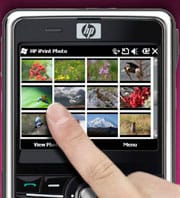
Once you have loaded HP iPrint Photo to your smartphone-you are ready to go. In a few clicks you can print photos from anywhere within range of your wireless network. 


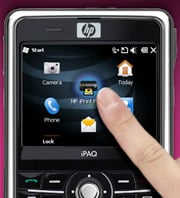
1) Click on the HP iPrint Photo icon

1. Click on the HP iPrint icon
2) Select the photo 


2. Select the photo
3) Click print


3. Select a printer

You should now be printing a 4"x6" or 10x15cm photo from your HP printer2. 

Note: If this is the first time printing to a specific printer, select the desired printer from the list of available printers. You will not be required to complete this step again in order to print additional photos on the same printer. 


How to select multiple photos and print


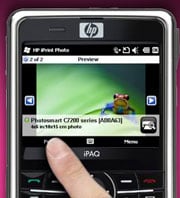
Launch HP iPrint Photo. Highlight the photo and select it. In preview mode, press menu and then press Select Photo. A circle with a check box will appear in the upper right hand corner of the photo with 1 of 1 showing. 

To select another photo, navigate through the photos using the arrow buttons in the preview pane – or go back to the thumbnail view and repeat. Each time you select a photo to print, the counter will increase to 2 of 2, 3 of 3, etc. If you go back to the thumbnail view, each photo you have selected to print will have a check mark next to it. Once you have selected all the photos you want to print, click print in the preview mode. 


How to select a printer


From the preview screen press the "menu" button, then select Printer Settings. The printers available to you will display in a list. 

You can also press the printer icon in the bottom right hand corner, which will bring up the printer list. 


Supported network environments:


HP iPrint Photo leverages mDNS technology to automatically identify HP wireless printers available on your network. HP iPrint Photo supports industry standard WiFi environments. 


HP iPrint Photo Support:


Get support for HP iPrint Photo. 

Find supported printers for HP iPrint Photo Software.

HP iPrint Photo App for your Android phone.Learn.

Learn what you can do with this powerful mobile app


With the HP iPrint Photo mobile app for Android, you can capture and crop photos and then print them on plain or photo paper in a variety of sizes, including 3.5" x 5", 4" x 6", and 5" x 7" (9 x 13 cm, 10 x 15 cm, and 13 x 18 cm)*. 

HP iPrint Photo prints to more than 200 HP printer models and with HP's image scaling technology, you'll get the great print quality you count on from HP. 

Plus, HP iPrint Photo automatically discovers and sets up your wireless HP printer without the need to install drivers or deal with complex network configurations. 


Download instructions


It's easy to download and install HP iPrint Photo from Android Market to your device; just follow these steps:
  • Launch Android Market on your Android phone.
  • Select the "Apps" tab
  • Search for "HP iPrint Photo"
  • Select HP iPrint Photo
  • Then select the Install button. HP iPrint Photo will start downloading immediately.

How to use


Once you have loaded HP iPrint Photo to your handheld device-you are ready to go. It's only a few simple clicks to print your photos from anywhere within the range of your wireless network. 


1) Tap the HP iPrint Photo icon


Tap the HP iPrint Photo icon
2) Choose an existing photo or capture a picture by tapping the camera icon

Choose an existing photo or capture a picture by tapping the camera icon
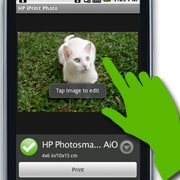
3) Tap the photo to edit, or skip to step 6 to print now 


Tap the photo to edit, or skip to step 6 to print now


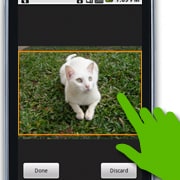
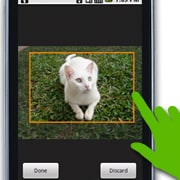
4) Move the crop box as needed and tap Done


Move the crop box as needed and tap Done
5) After editing, tap the photo to continue


After editing, tap the photo to continue
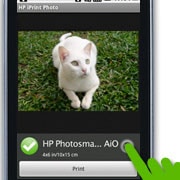
6) Tap Print to print your photo or tap the dropdown icon for printer settings 

Tap Print to print your photo or tap the dropdown icon for printer settings a


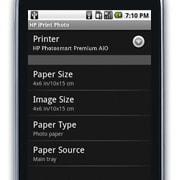
7) Specify desired printer, paper, image, and source settings, then press Return

Specify desired printer, paper, image, and source settings, then press Return
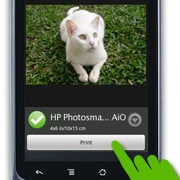
8) Tap Print...now your photo is printing


Tap Print, then your photo is printing


Supported network environments


HP iPrint Photo leverages mDNS technology to automatically identify HP printers available on your network. HP iPrint Photo supports industry standard WiFi environments. 


HP iPrint Photo support


Get support for HP iPrint Photo. 

Find supported printers for Android phones.


* HP iPrint Photo defaults to print borderless 4"x6" (American standard) and 10x15cm (European standard) photos. If your printer has a separate photo tray, it will be automatically selected. Otherwise the default will be the printer's main paper tray. 

LG OLED evo M5, the Only True Wireless OLED TV With G5’s Excellence in Picture Quality.

  With Uncompromised, Low-Lag Performance at 4K 144Hz, LG’s Advanced Wireless Technology Sets a New Standard for Clutter-Free Gaming and Hom...

Popular Posts